Free WhatsApp Templates for Small Merchants — Send the Right Message Without Paying for It
SuperLemon Team
2 min read

- +90% open rate on WhatsApp
- Recover abandoned carts automatically
- Send Broadcast Campaigns
Most WhatsApp tools for Shopify are built around the same assumption: you want automation, API access, and message flows at scale. That's fine for large stores. But if you're a smaller merchant sending messages to a few dozen customers a week, the pricing and setup overhead don't make sense.
When SuperLemon was built, the goal was to serve small merchants too — not just the ones with enterprise budgets. Manual messaging is part of that. It's free, it works without a WhatsApp Business API account, and it's designed for the kind of store that's global but still small. You pick a template, your customer's details from Shopify fill in automatically, and WhatsApp Web or desktop WhatsApp opens with the message ready to send. You press send. That's it.
Templates for the Situations That Come Up
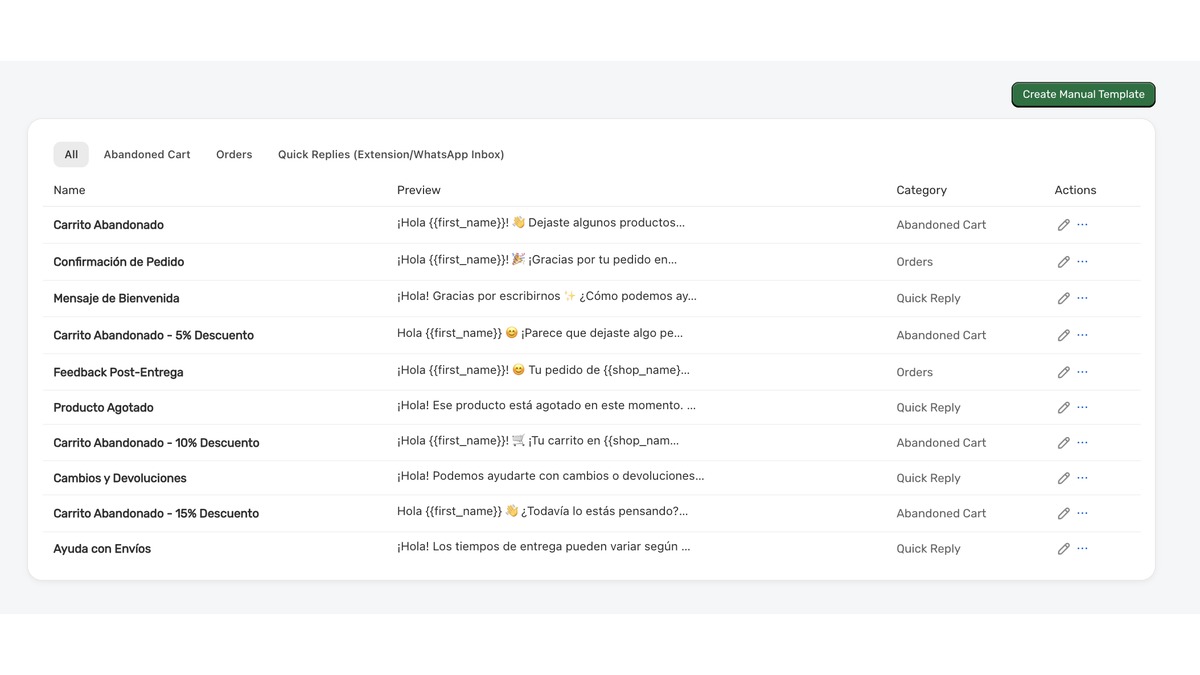
There are pre-built templates for the messages most merchants find themselves sending: abandoned cart recovery, order confirmations, shipping updates, and feedback requests after delivery. Each one pulls in Shopify data — customer name, order number, product details — so you're not filling things in by hand.
If those don't cover your use case, you can create your own templates using Shopify variables. The structure is the same: you write the message once, reference the variables you need, and the details fill in when you go to send.
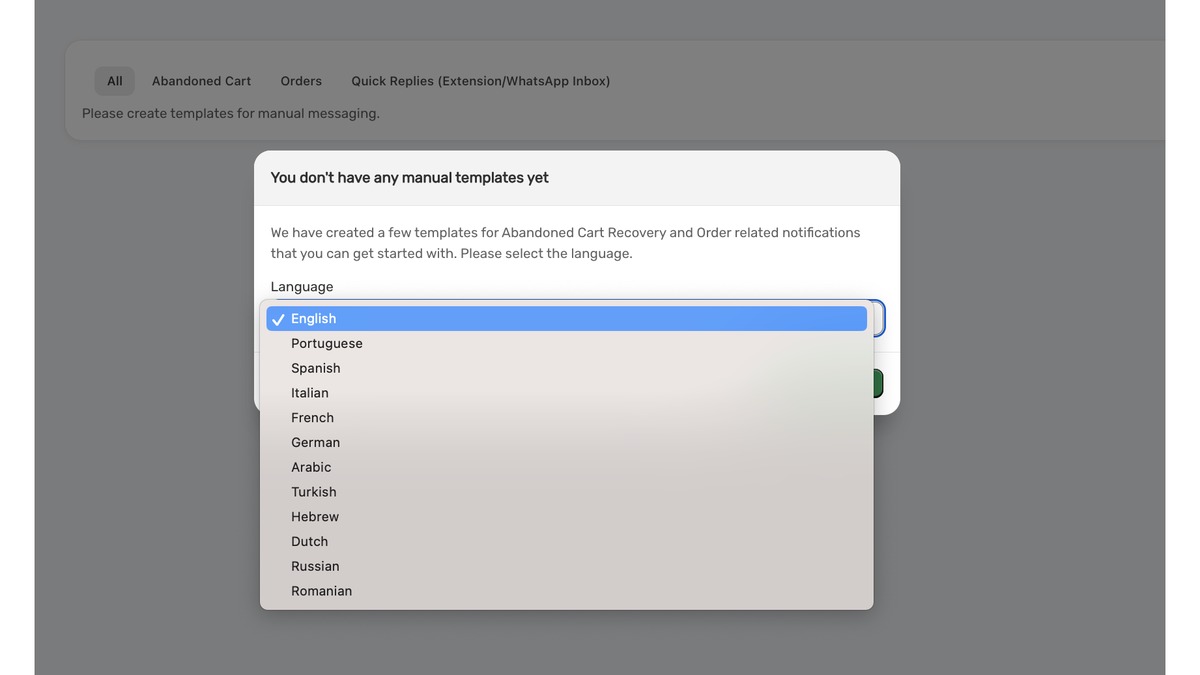
The template library is also available in multiple languages. If your customers are spread across different countries, you pick the language that fits your region and start from a pre-translated template rather than writing one from scratch.
Discount Codes That Come With the Message
Some templates are built around a discount offer — for cart recovery, for example, or a loyalty follow-up. Pick one of those and SuperLemon connects to Shopify, creates the discount code, and drops it into the message before WhatsApp opens. By the time you're looking at the pre-filled message, the code is already in it. You're not generating it somewhere else and pasting it in manually.
To get started, go to Templates → Manual Message Templates in your SuperLemon dashboard. The pre-built templates are there to use immediately, and creating your own takes a few minutes.
