Customise Your Automated WhatsApp Messages
SuperLemon Team
2 min read

- +90% open rate on WhatsApp
- Recover abandoned carts automatically
- Send Broadcast Campaigns
For years, thousands of Shopify merchants used Superlemon's WhatsApp automations to send abandoned cart reminders, order confirmations, shipping updates, and COD confirmations. Those automations ran from Superlemon's WhatsApp-approved numbers and went live in a click, with no technical setup.
When we added private WhatsApp Business API support, letting merchants send automated messages from their own number, the underlying automation system stayed the same. The side effect: you could enable or disable an automation, but you couldn't change what it said.
That's a real problem for stores that care about tone. WhatsApp is personal — customers read these messages and they notice when the language doesn't sound like the brand they bought from. A store that's built a distinct voice across their website, their packaging, their customer emails, couldn't carry any of that into their Superlemon automations.
That's now fixed. Automation templates are editable, available on Brand and Scale plans.
What You Can Now Edit
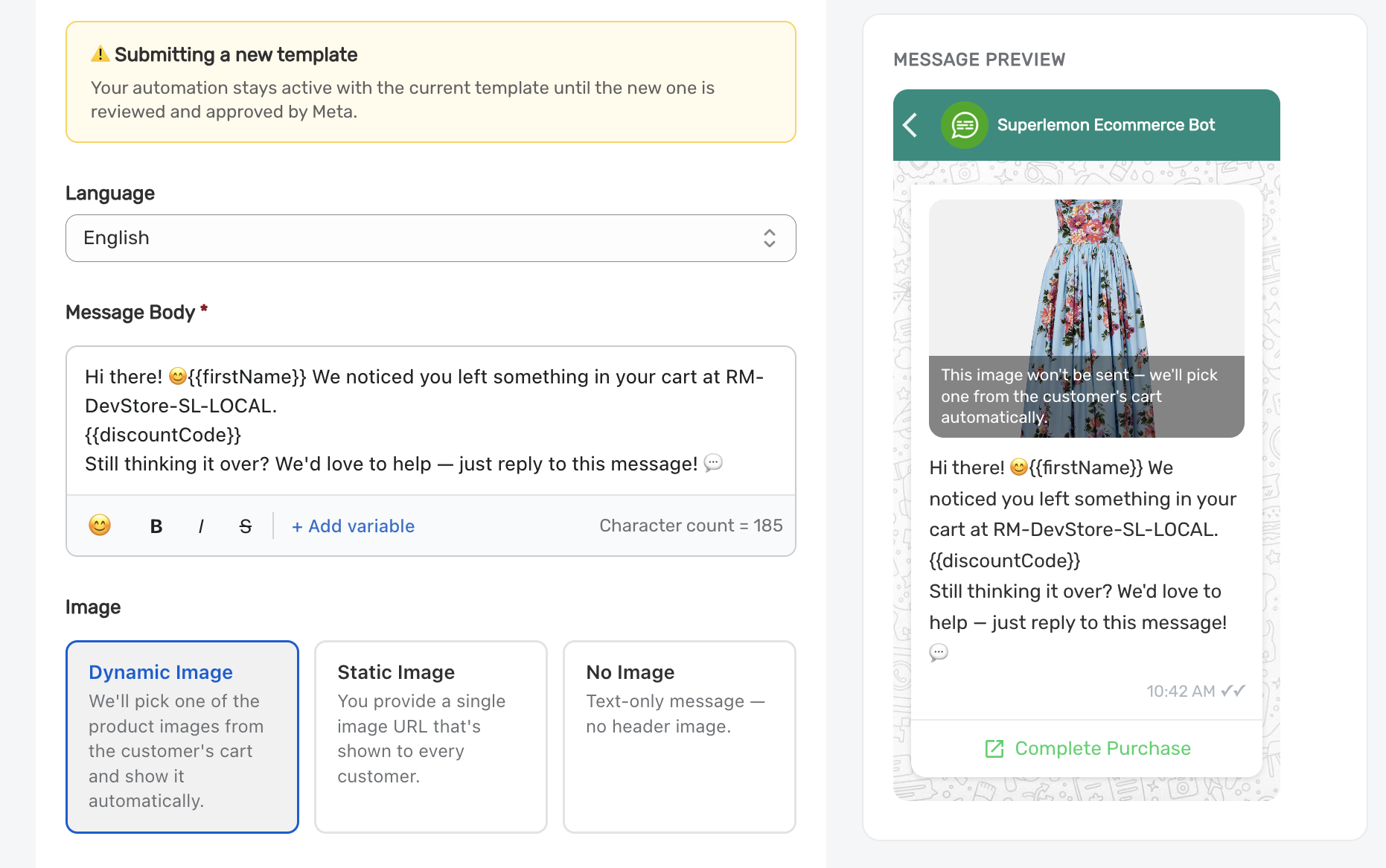
Opening any automation takes you into a template editor. You can change the message body, add or remove variables, and set the tone to match how your store actually talks to customers.
A fashion store selling dresses might want their abandoned cart message to feel immediate and personal:
Hey {{firstName}} 👗 You left something behind. It's still in your cart — grab it before it's gone. {{discountCode}}
A furniture store is a different kind of sale — bigger ticket, more considered. The same automation might read:
Hi {{firstName}}, the pieces you saved are still in your cart. If you have questions about dimensions or delivery before you decide, just reply to this message.
Dynamic product images in Abandoned Cart
For abandoned cart notifications, Superlemon can automatically pull a product image from the customer's cart and send it as the message header. Each customer sees the specific item they left behind. You don't upload or configure anything — it reads from the checkout data.
Head to Automations in your Superlemon dashboard, open any automation, and select Edit Template. Questions? support@superlemon.xyz