Stop reformatting spreadsheets before every campaign
SuperLemon Team
2 min read

- +90% open rate on WhatsApp
- Recover abandoned carts automatically
- Send Broadcast Campaigns
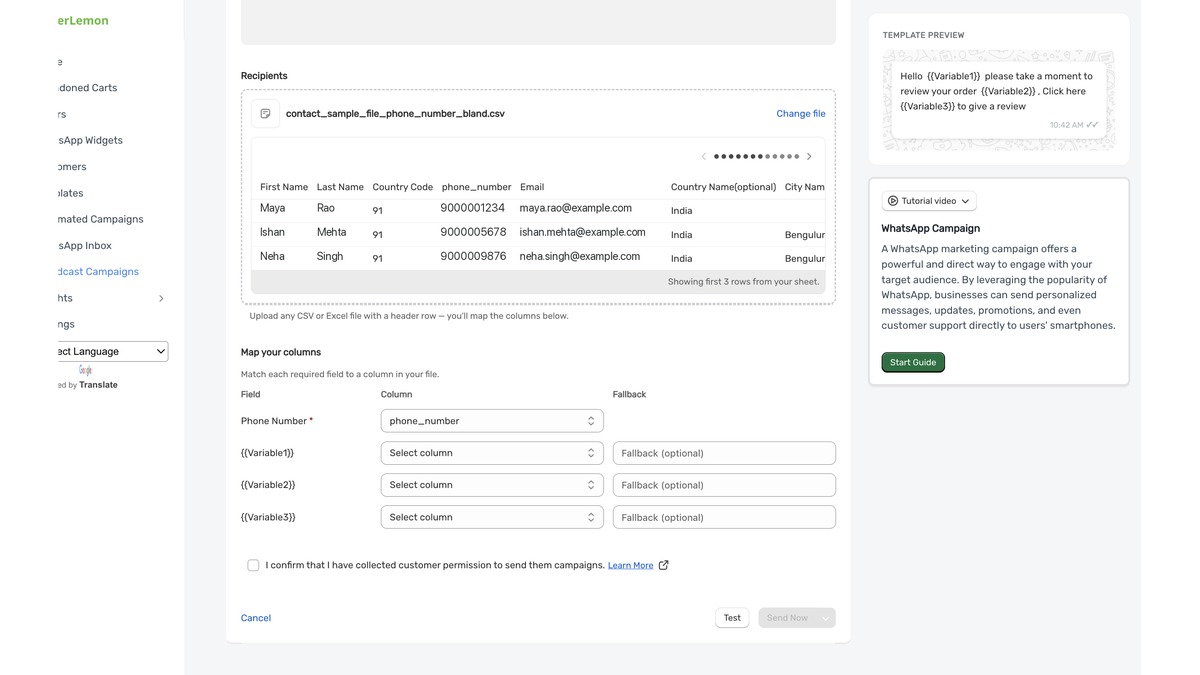
Most merchants have a spreadsheet they work from: an export from their CRM, a filtered list from Shopify, or something they've built up over time in Excel. It has columns — phone numbers somewhere, names in another, maybe a field for city or last order date.
Then they go to upload it for a campaign and find out the tool has opinions. Phone number needs to be the first column. It needs to be called "phone_number" specifically, not "phones" or "Phone" or "contact_number". The other columns need to match the order of variables in the WhatsApp template being sent. So they open the spreadsheet again, rearrange columns, rename things, save it, upload again. Sometimes this takes three tries to get right.
It's reasonable for a tool to need to know what each column is. The wrong place to put that burden is on the merchant.
What contact mapping does
The Audience step in Broadcast Campaigns now includes a column mapping interface. Upload whatever spreadsheet you have and tell Superlemon which column is which. Phone numbers in column six? Select that column. Column called "phones" instead of "phone_number"? Makes no difference. Template variables in a different order than your sheet? Map them to match.
Your spreadsheet stays as it is. The mapping happens in the tool, not in the file.
This also works with Shopify Segments. Go to your segment, click Use Segment at the top right, and select the Superlemon action. We'll pull the segment into the campaign interface and from there you can map each Shopify contact field to the right variable in your WhatsApp template.
Check before you send
The audience step shows you a contact count and a sample of who's included before anything goes out. If a column looks wrong or the count is off from what you expected, you catch it here rather than after 2,000 people receive the wrong message.
Go to Broadcast Campaigns → Create Campaign and look for the Audience step. If you have a contact file you've been reformatting before every campaign, try uploading it as-is.